





Published in Guides
WhatsApp message templates: rules, approval and 18 examples

By Lyle Timotheus · 16 min read
A WhatsApp message template is a message Meta has approved in advance, which a business uses to start a conversation or to reach a customer more than 24 hours after their last message. Order updates, booking reminders, payment links and promotions sent through the WhatsApp Business API are all templates.
I set up templates most weeks for businesses whose teams handle thousands of WhatsApp conversations a month, and the same questions come up every time: which category to pick, why Meta rejected one, how to keep hundreds of templates under control, and what a good one looks like. This guide answers those, then gives you 18 examples you can adapt, organised along the customer journey from first enquiry to repeat purchase.
What a template is and when you need one
Every time a customer messages you or calls you, a 24-hour customer service window opens, and it resets with each new message. While it's open, your team can send anything: free text, photos, voice notes, buttons and lists. When it closes, Meta only lets you send pre-approved template messages.
So you need a template whenever you start the conversation. That covers anything automated that goes out on a schedule or after an event:
- An order confirmation or delivery update sent when the order changes status.
- A booking reminder sent the day before.
- A payment reminder or invoice link.
- A follow-up to someone who went quiet a week ago.
- A campaign to your opted-in customer list.
Templates only work on the official API. The free WhatsApp Business app has no templates in this sense. If you're not on the API yet, our guide to getting the WhatsApp Business API in South Africa walks through the setup.
The three template categories
Every template belongs to one of three categories. Meta's template categorisation guidelines define them, and the category decides what you pay per message.
| Category | What Meta allows | Typical examples |
|---|---|---|
| Marketing | Anything promotional: awareness, sales, retargeting, relationship-building. Also any template with mixed or unclear content. | Sales, new stock, cart reminders, win-backs, coupon codes |
| Utility | Non-promotional messages that are specific to or requested by the customer, or essential to them, such as safety or legal notices. | Order and delivery updates, booking confirmations, reminders, invoices, receipts |
| Authentication | One-time passcodes for verifying someone's identity, using Meta's fixed wording. | Login codes, account verification |
Mixed content counts as marketing
This is the rule that catches most businesses. If a utility message contains any promotion, it's a marketing message. Meta's own example is an order update with an offer attached. A template that's mostly a variable, or vague ("Congratulations!"), is also treated as marketing, because Meta can't tell what it's for.
A delivery update that ends with "Use code SAVE10 on your next order" is a marketing template. Remove the code and it's utility.
How Meta checks and changes the category
- At submission. Meta compares the category you picked against the content. An approval means Meta agrees with your choice.
- Utility that reads as marketing. Since April 2025, Meta approves it as marketing by default instead of rejecting it.
- After approval. Meta runs a recurring check on approved templates. A utility template it decides is marketing gets moved, usually with one day's notice, and stays approved. Businesses that already have a misuse warning get no notice.
- Disagreeing. You have 60 days to request a review through Meta Business Support.
Meta also penalises businesses that keep labelling marketing as utility. The steps run from warnings to rate limits on utility messages, to losing the right to create utility templates for 7 days, or 30 days for repeat cases.
Why the category matters for cost
Meta charges per delivered template, and the rate depends on the category. For South African numbers, a marketing message costs about four times as much as a utility message. The current rates and worked examples in rand are in our WhatsApp Business API pricing guide. The practical lesson: keep your transactional updates clean and promotion-free so they stay utility, and save marketing for messages that are meant to sell.
How a template is built
A template has up to four parts. These limits come from Meta's template components reference:
| Part | Required? | Limits |
|---|---|---|
| Header | Optional | Text up to 60 characters with one variable, or an image, video or document. Utility and marketing templates can also use a location. |
| Body | Required | Up to 1,024 characters, with as many variables as you need |
| Footer | Optional | Up to 60 characters |
| Buttons | Optional | Up to 10 in total. Button text up to 25 characters. |
Variables
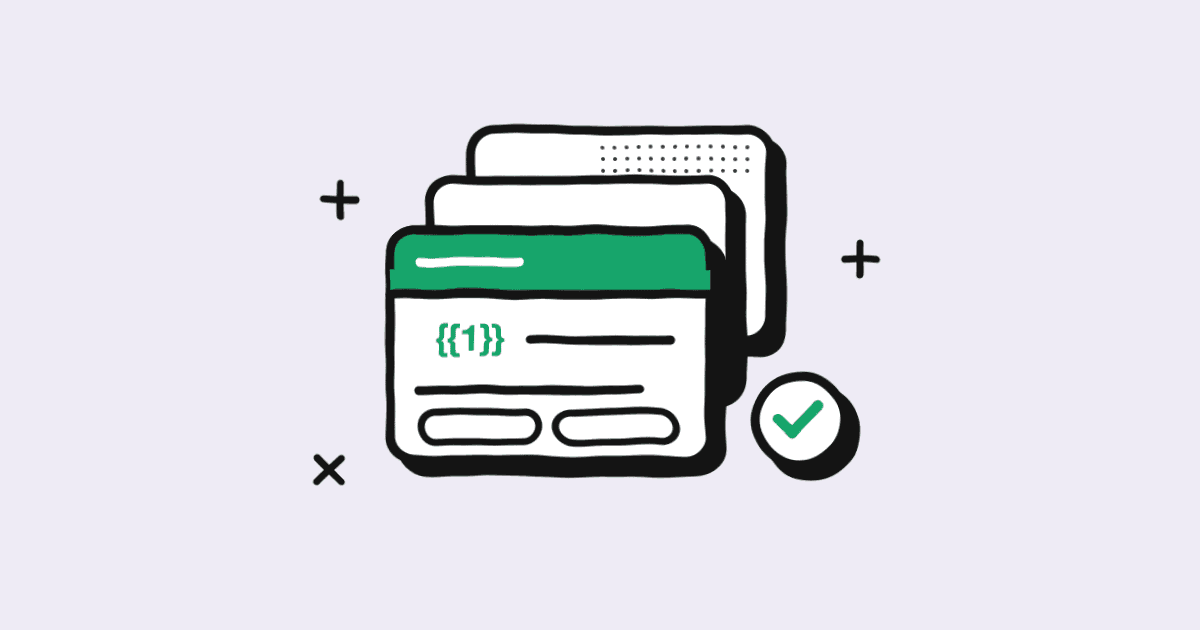
Variables are the gaps you fill in when you send: the customer's name, an order number, an amount, a date. They're written as numbered placeholders, {{1}}, {{2}} and so on, in order. Meta also accepts named ones such as {{first_name}}, in lowercase with underscores. Every variable needs a sample value when you submit, so the reviewer can see what a real message looks like.
Buttons
- Quick reply: up to 10. The customer taps and the label comes back to you as their reply.
- Website link: up to 2. The link can end in one variable, so each customer gets their own tracking or payment page.
- Phone number: 1. Opens the dialler.
- Copy code: 1. Copies a coupon code to the customer's clipboard.
If you mix quick replies with other buttons, keep the quick replies grouped together. With more than three buttons, WhatsApp shows two and tucks the rest behind "See all options". Templates with four or more buttons, or quick replies mixed with other types, can't be viewed on WhatsApp desktop. Our guide to WhatsApp buttons and interactive messages covers every button type in more detail.
Getting a template approved
Meta reviews templates automatically when you submit or edit them, and says review can take up to 24 hours. In practice most simple utility templates come back much faster than that. The steps:
- Name it. Lowercase letters, numbers and underscores only, such as booking_reminder_24h. You can reuse the same name for each language you send in.
- Pick the category and language. Meta doesn't translate templates, so write each language version yourself.
- Write the parts and add a sample value for every variable and an example for any media header.
- Submit from WhatsApp Manager or from your platform. Meta sends the result to WhatsApp Manager, emails your Business Suite admins and notifies your platform.
There are limits on how many you can have. A business portfolio that isn't verified can hold 250 templates per WhatsApp account. Once it's verified and a number has an approved display name, that goes up to 6,000. You can create at most 100 an hour.
If Meta rejects a template you believe is fine, you can appeal it with sample values attached. Appeals are decided within 24 hours.
Why templates get rejected, and how to fix them
Meta lists its common rejection reasons on the template review page. These are the ones I see most, with the fix for each:
| Reason | Fix |
|---|---|
| The text starts or ends with a variable | Put words before the first variable and after the last one. "Hi {{1}}," is fine. Ending on "...here: {{3}}" is not, so put links in a button instead. |
| Broken variables: missing braces, skipped numbers, or symbols such as #, $ or % inside them | Use {{1}}, {{2}}, {{3}} in order. Keep currency symbols outside: R{{2}}, not {{R2}}. |
| Too many variables for the length of the message | Add real wording around the variables, or combine details into fewer variables. |
| Wrong category | Strip the promotion out of a utility template, or resubmit it as marketing. |
| Duplicate of an existing template | Change the body and footer wording, or reuse the template you already have. |
| Asks for sensitive identifiers | Don't ask for full ID numbers or card details in a template. Partial identifiers, such as the last four digits, are allowed. |
| Threatening or abusive tone | No threats of legal action or public shaming. A firm, polite payment reminder gets approved. "Pay now or we hand you over" doesn't. |
| Breaks Meta's Commerce Policy | Check what you're selling is allowed on WhatsApp, and include prices and terms honestly. |
Beyond Meta's list, give the reviewer context. A body that reads like a real message from a real business, with a sensible sample value for each variable, gets through more easily than one that's mostly placeholders.
Quality rating and paused templates
Once a template is live, Meta gives it a quality rating based on how customers respond to it: negative feedback such as blocks and reports, and how many people read it.
- Green (high): little or no negative feedback.
- Yellow (medium): negative feedback from several people, or low read rates. Still sends, but it's a warning.
- Red (low): the same signals, worse. Still sends, but it's close to being paused.
- Unknown: not enough data yet.
When a template hits the lowest rating, Meta pauses it: for 3 hours the first time, 6 hours the second time, and the third time it's disabled. A paused template can be edited and resubmitted. A disabled one can't be revived, so you have to create a new template with different content.
A pause is a signal about the message and the people receiving it, so don't just resubmit the same words. Look at who you sent it to, how often, and whether they asked for it. Poor quality on templates also drags down your number's overall standing, which we cover in how to avoid a WhatsApp ban.
Running templates at volume
One branch with five templates can get away with no system. A business with several regions, a few hundred templates and agents in three teams can't. Templates pile up, two teams submit near-identical versions, and nobody knows which one the automation uses. A bit of governance early saves a lot of clean-up later.
- A naming convention. Meta only allows lowercase letters, numbers and underscores, so build meaning into the name: journey stage, purpose and version, such as conv_booking_reminder_24h_v2. Use the same name for each language version.
- One owner per template. Decide who can submit and edit templates, and who signs off marketing wording. In Syncli, admins manage templates and agents use them, which keeps the approved set from growing by accident.
- A register. Keep a simple list of each template's name, category, owner, where it's used (a campaign, an automation, agents' manual sends) and when it was last reviewed. Meta rejects duplicates, so the register also stops teams writing the same message twice.
- Watch quality per template as well as per number. One poorly targeted campaign template can be paused while everything else is green. Check ratings in WhatsApp Manager or your platform after every large send.
- Check categories every quarter. Meta recategorises approved templates on its own schedule, and a utility template that becomes marketing quietly raises the cost of every send. Look for category-change notices and fix the wording rather than living with it.
- Retire what you don't use. The cap is 250 templates per WhatsApp account until your portfolio is verified, then 6,000. Old seasonal templates make the list harder to manage long before you hit either.
18 WhatsApp template examples across the customer journey
These are written for businesses with several branches and teams: retail chains, clinic groups, dealer groups, education providers, insurers and multi-branch service businesses. Swap in your own names and details, and adjust the tone to sound like you. The business names are made up.
Buttons are shown in square brackets. Every example starts and ends with words, not variables, so it won't trip the most common rejection. Marketing examples should only go to customers who opted in, as our WhatsApp bulk messaging page explains.
Lead and enquiry follow-up
Speed matters most here. A lead who enquired yesterday and hears nothing has often asked someone else by now.
1. Enquiry follow-up (Marketing, lead_enquiry_followup)
- Body: Hi {{1}}, thanks for your enquiry about the {{2}} at our {{3}} dealership. Is now still a good time to talk about it? Choose an option below and the right consultant will pick it up.
- Buttons: [Book a test drive], [Ask a question], [Not interested] (quick replies).
The customer did enquire, but nudging them towards a sale is persuasive, so expect Meta to treat this as marketing.
2. Callback confirmed (Utility, lead_callback_confirmed)
- Body: Hi {{1}}, thanks for requesting a quote. {{2}} from our team will call you on {{3}} at {{4}}. If that time doesn't suit you, tap below to choose another or to chat here instead.
- Buttons: [Change the time], [Chat instead] (quick replies).
3. Open day invitation (Marketing, lead_open_day)
- Header: image of the campus
- Body: Hi {{1}}, you asked about {{2}} at our {{3}} campus. Our open day is on {{4}}, with campus tours, time with lecturers and help with applications. Tap below to save a place for you and anyone joining you.
- Buttons: [Save my place], [Send the brochure], [Not this time] (quick replies).
When a lead taps a button, the 24-hour window opens and the reply lands in your team inbox, so a consultant can take it from there. In Syncli, chat flows can also qualify the lead and route it to the right branch first, as described on the WhatsApp automation page.
Conversion: quotes, checkout, bookings and payments
4. Quote ready (Utility, conv_quote_ready)
- Body: Hi {{1}}, your quote {{2}} for {{3}} is ready. The total is R{{4}} including VAT, valid until {{5}}. Open it below, and reply here if you'd like to change anything.
- Buttons: [View quote] (link), [Talk to a consultant] (quick reply).
5. Order confirmed (Utility, conv_order_confirmed)
- Body: Hi {{1}}, thanks for your order with Umoya Furniture. Order {{2}} for R{{3}} is confirmed and we're getting it ready. We'll message you again when it's on the way.
- Buttons: [View order], linking to the order page with the order number at the end of the URL.
6. Out for delivery (Utility, conv_order_dispatched)
- Body: Good news, {{1}}. Your order {{2}} left our {{3}} warehouse today with {{4}}. Expect it on {{5}} between 8am and 5pm, and please make sure someone is home to sign for it.
- Buttons: [Track delivery] (link), [Change delivery day] (quick reply).
7. Abandoned cart (Marketing, conv_cart_reminder)
- Header: image of the product
- Body: Hi {{1}}, you left {{2}} in your cart. We've saved it for you and it's still in stock. If you have a question about sizing, delivery or payment options, reply here and someone from our team will help.
- Buttons: [Finish my order] (link), [I have a question], [Stop promotions] (quick replies).
Cart reminders are marketing even though they relate to something the customer did, because Meta counts retargeting as marketing. I like giving people a question button as well as the checkout link. Plenty of carts are abandoned over a doubt, and a reply opens the window for your team to answer it.
8. Booking confirmed (Utility, conv_booking_confirmed)
- Header: Booking confirmed
- Body: Hi {{1}}, you're booked for a {{2}} at our {{3}} clinic on {{4}} at {{5}}. Your R{{6}} deposit has been received and comes off your final bill. If you need to change anything, please let us know at least 24 hours before.
- Buttons: [Reschedule], [Cancel booking] (quick replies).
9. Appointment reminder (Utility, conv_appointment_reminder_24h)
- Body: Hi {{1}}, a reminder that your appointment with {{2}} is tomorrow, {{3}} at {{4}}. Please confirm or move it below so we can offer the slot to someone else if you can't make it.
- Buttons: [Confirm], [Reschedule], [Cancel] (quick replies).
The buttons matter more than the wording here. The client can confirm or move the booking in one tap, and the front desk finds out about a cancellation while there's still time to fill the slot. Syncli's WhatsApp booking system sends these at the times you choose, across branches and staff calendars.
10. Invoice with payment link (Utility, conv_invoice_issued)
- Body: Hi {{1}}, your invoice {{2}} for R{{3}} is ready and due on {{4}}. You can pay securely online using the button below.
- Buttons: [Pay now], linking to the payment page with the payment reference as the URL variable.
11. Payment due soon (Utility, conv_payment_reminder_due)
- Body: Hi {{1}}, a friendly reminder that R{{2}} for {{3}} is due on {{4}}. If you've already paid, please ignore this message. If you have a question about the amount, tap below and our accounts team will help.
- Buttons: [Pay now] (link), [Talk to accounts] (quick reply).
Keep payment reminders polite and factual. Meta rejects threatening wording, and customers who feel chased block numbers. With WhatsApp payments in Syncli, the Yoco, Payfast or Paystack link is created for the exact amount, and the customer gets a confirmation when it's paid. There's more on timing and wording in our guide to WhatsApp payment reminders.
Retention: renewals, re-engagement, loyalty and feedback
12. Policy renewal notice (Utility, ret_policy_renewal)
- Body: Hi {{1}}, your {{2}} policy {{3}} renews on {{4}}, and your new monthly premium will be R{{5}}. Nothing else changes unless you ask us to. You can see the full renewal schedule below.
- Buttons: [View renewal] (link), [Talk to an adviser] (quick reply).
This is utility because it's a factual update about the customer's own policy. Add "upgrade your cover and save" and it becomes marketing.
13. Overdue check-up (Marketing, ret_checkup_winback)
- Body: Hi {{1}}, it's been a while since your last visit to our {{2}} practice. Most patients need a check-up and clean every six months. Tap below to book a time that suits you, and we'll remind you the day before.
- Buttons: [Book a check-up], [Not now], [Stop messages] (quick replies).
14. Month-end sale (Marketing, ret_month_end_sale)
- Header: image of the sale
- Body: Hi {{1}}, our month-end sale starts on Friday. Take {{2}} off selected sofas and beds at all our stores and online until Sunday. Show this message in store or shop online below.
- Footer: While stock lasts. T&Cs apply.
- Buttons: [Shop the sale] (link), [Stop promotions] (quick reply).
15. Loyalty coupon (Marketing, ret_loyalty_coupon)
- Body: Hi {{1}}, thanks for being one of our regulars. Here's R100 off your next order of R600 or more, valid until {{2}}. Tap the button to copy your code and use it at checkout.
- Buttons: [Copy code] with the coupon, [Shop now] (link).
Promotions are where an opt-out button earns its place. A customer who taps "Stop promotions" costs you nothing. One who reports you lowers your quality rating. Segmenting by order history, so the sofa sale goes to people who buy furniture, does more for results than any wording.
16. Delivery feedback (Utility, ret_order_feedback)
- Body: Hi {{1}}, your order {{2}} was delivered on {{3}}. How did we do? Tap a button below. It takes two seconds and helps us improve.
- Buttons: [Great], [It was okay], [Not good] (quick replies).
17. Visit feedback form (Utility, ret_visit_feedback)
- Body: Hi {{1}}, thanks for visiting our {{2}} branch today. We'd love three quick answers about your visit with {{3}}. It takes under a minute.
- Buttons: [Give feedback], which opens a short WhatsApp Flow form inside the chat.
I've labelled the feedback templates utility because they ask about one specific order or visit and carry no offer. Meta makes the final call. Add a discount for leaving a review and they become marketing. Route the "Not good" taps straight to a person, so an unhappy customer hears from someone quickly.
Account security
18. Login code (Authentication)
- Body (Meta's fixed wording): {{1}} is your verification code. For your security, do not share this code. This code expires in 10 minutes.
- Buttons: [Copy code], or one-tap autofill on Android.
You don't write authentication templates yourself. Meta supplies fixed wording, and you choose whether to add the security line and the expiry time. They can't contain links, media or emojis, and the code can be up to 15 characters. This is the one case where the text starts with a variable, because Meta wrote it.
How templates work in Syncli
In Syncli you build templates in the dashboard, with an image, video or document header, personal fields and quick-reply, link and opt-out buttons, then submit them to Meta without leaving the screen. You can send a test to your own phone before it goes to customers, and your number's quality rating and messaging limit show in the campaign builder.
Replies to every template land in the shared inbox, where AI agents answer the routine ones and hand the rest to the right team with the conversation attached. When you start, our onboarding team sets up your first templates with you, so the categories and wording are right before anything goes out.
Want a second opinion on your templates?
If you're about to write your first set of templates, or one keeps getting rejected, book a private strategy review. We'll look at your templates and categories with you and tell you what each send will cost. No commitment.
Frequently asked questions
It's a message Meta approves before you can send it. On the WhatsApp Business API, templates are the only way to start a conversation with a customer, or to message them more than 24 hours after they last messaged you. Inside that 24-hour window, your team can reply freely without templates.