






Published in Guides
How to get the WhatsApp Business API in South Africa

By Lyle Timotheus · 9 min read
To get the WhatsApp Business API in South Africa, you need a Meta Business Portfolio, a phone number that can receive an SMS or a voice call, and a way to connect to Meta's Cloud API: either your own developer, or a Meta Tech Provider that runs Meta's Embedded Signup flow for you. You log in with Facebook, pick or create your portfolio, verify the number, choose a display name, and the number is on the API.
That's the short version. For a business with sales and support teams across several branches, the parts that trip people up sit around the signup: business verification, display name rules, and what happens to a number that's already busy on the WhatsApp Business app. I'll go through each step the way we walk clients through it at Syncli, including the questions I'd ask any provider before you move thousands of customer conversations onto it.
What you need before you start
Get these sorted first and the rest goes a lot faster:
- A Meta Business Portfolio (what used to be called Business Manager), with someone who has full admin access available on the day. If your marketing agency created your portfolio, check who the admins are before you start.
- A phone number you own, with a country and area code. Meta's phone number requirements say it must be able to receive a voice call or SMS for the verification code, and short codes aren't supported. Landlines work if they can take the call.
- Business details that match your registration. Your legal name, address, phone number and website should match your CIPC registration documents exactly, because Meta checks them during business verification.
- A working website on your own domain that shows the same business name.
- A display name that follows Meta's rules (more on that below).
- A two-step verification PIN. Meta requires one when the number is registered, and you'll need it again if you ever move or delete the number. Store it somewhere the business controls, not on one staff member's phone.
Display name rules that catch people out
Your display name is what customers see instead of your number once Meta approves it. Meta reviews it automatically when your account reaches a higher messaging limit, and a rejected name is one of the most common setup snags we see. According to the WhatsApp Help Center, a business name can't:
- Be in all capitals, unless it's an acronym. Only the first letter of each word should be capitalised.
- Use emoji, symbols such as ®, unnecessary punctuation or double spaces.
- Consist only of a person's full name, a generic word ("Fashion"), a generic place ("Pretoria") or three or fewer characters.
- Include any version of the word "WhatsApp".
There's one useful exception: if you already brand yourself a certain way in public, with unusual capitals or punctuation, your WhatsApp name can match that branding. The name should also relate clearly to the business on your website. Meta's display name docs allow 10 name changes in 30 days, and after a change is approved the number has to be re-registered.
Direct with Meta, or through a Tech Provider
Meta lets any business build on the Cloud API itself. The Cloud API get-started guide is written for developers: you create a Meta app, set up a webhook server to receive messages, and generate a permanent access token for a system user. Then you still need software for your team to read and answer chats, because the API has no screen of its own.
Most businesses connect through a Meta partner instead. Meta has two main kinds: Solution Partners (often called BSPs) and Tech Providers. Syncli is a Tech Provider. Both can onboard you through Embedded Signup and give you a platform to work in.
| Direct with Meta | Through a Tech Provider or BSP | |
|---|---|---|
| Who connects you | Your own developer | The provider, through Embedded Signup |
| Inbox for your team | You build or buy one | Included in the platform |
| Webhooks, tokens, hosting | Your responsibility | Handled by the provider |
| Monthly cost | Meta's message fees plus your development and hosting | Meta's message fees plus the platform subscription |
| Coexistence (keep the app) | Not available: Meta only offers it through partners | Available through Tech Providers and Solution Partners |
| Support when something breaks | Meta's developer support | Your provider, who can escalate to Meta |
Going direct makes sense if you have developers and you're building WhatsApp into your own product. If you want agents across branches answering chats next week, with routing and reporting from the first day, a provider is the shorter road.
How Embedded Signup works, step by step
Embedded Signup is Meta's own onboarding window. It opens inside your provider's website, but you're logging in to Meta, and Meta creates the WhatsApp assets in your own portfolio. According to Meta's Embedded Signup docs, the steps are:
- Log in with your Facebook or Meta business account.
- Accept Meta's terms and approve the access the provider is asking for.
- Select your business portfolio, or create a new one.
- Select or create a WhatsApp Business account inside that portfolio.
- Enter and verify your phone number with the code Meta sends by SMS or call.
- Enter your display name.
Because everything is created in your portfolio, the number and its history belong to your business. That matters if you ever change provider. Syncli runs Embedded Signup from inside the dashboard, and our onboarding team sits with you while you do it, so nobody has to guess which option to pick.
What happens to a number already on WhatsApp
This is the question I get most. If the number you want to use is already on the WhatsApp Business app, you have two options.
Option 1: coexistence (keep the app)
Meta lets you connect a WhatsApp Business app number to the API through a Tech Provider or Solution Partner and keep using the app on the same phone. Meta's coexistence docs require app version 2.24.17 or later. Contacts and up to six months of one-to-one chats can sync into the platform, and from then on messages show in both places. A few app features switch off, including broadcast lists and disappearing messages, and coexistence numbers are fixed at 20 messages a second. Our coexistence page covers what changes in detail.
Option 2: move the number fully to the API
If you don't need the app, you can move the number to the API only. Meta's phone number docs say a number that's in use on WhatsApp can't be registered on the API until that WhatsApp account is deleted. Back up anything you need from the phone first. If the number is on a personal WhatsApp account, the same rule applies.
Which to pick? I'd choose coexistence when a branch manager or senior salesperson still wants to answer from their phone, and a full move when every conversation should run through the team inbox. If you're still deciding whether you need the API at all, read WhatsApp Business app vs API first.
Business verification: do it early
You can connect a number before your business is verified, but verification is what moves you past the starting limits. Meta's docs tie several things to a verified portfolio:
- Higher messaging limits. Verifying your business is one of the paths from 250 to 2,000 unique customers a day.
- More phone numbers. New portfolios can register two numbers. Meta raises that to 20 once you're verified or reach the 2,000 limit.
- More templates. A verified portfolio with an approved display name can hold up to 6,000 message templates per account, against 250 when unverified, according to Meta's business account docs.
- The green tick. A verified portfolio is one of the conditions for applying to be an Official Business Account.
You start verification from the Security Centre in Meta Business Suite. Meta's business verification guide asks for your legal business name, address, phone number and website, and may ask for documents that prove them. We cover the badge side of this in our guide to getting the WhatsApp green tick.
Messaging limits when you start
A messaging limit caps how many different customers you can message first, outside a customer service window, in a rolling 24 hours. Replies inside an open customer service window don't count towards it. Meta sets the limit at portfolio level, so it is shared by every number in your portfolio. These are the levels in Meta's messaging limits docs:
| Limit (unique customers per 24 hours) | How you get there |
|---|---|
| 250 | Where every new portfolio starts |
| 2,000 | Verify your business, or send 2,000 high-quality template messages to unique customers in 30 days |
| 10,000 | Automatic: keep quality high and use at least half your limit over 7 days |
| 100,000 | Automatic, on the same conditions |
| Unlimited | Automatic, on the same conditions |
Meta says the move to 2,000 happens immediately once approved, and automatic increases after that happen within six hours. Quality is the part you control: send to people who opted in, and make it easy to opt out. Our guide on how to avoid a WhatsApp ban covers the habits that keep a number healthy.
What it costs, in outline
There are two separate costs. Meta charges per delivered message, based on the message category (marketing, utility, authentication or service) and the recipient's country. Messages customers send you are free. You'll need a payment method on file for Meta's fees.
Your provider charges for the platform. Syncli starts from R1,800 a month, and we pass Meta's message fees on at cost, without a margin. The current South African per-message rates and worked examples in rand are in our WhatsApp Business API pricing guide, and you can price your own volumes in the WhatsApp pricing calculator. Syncli's plans are on the pricing page.
Why setup gets stuck
When a client tells me their setup has stalled, it's almost always one of these:
- Nobody has admin access to the portfolio. An agency or ex-employee set it up and left. Sort out admin rights before anything else.
- The number is still on WhatsApp. For a full move, the existing account has to be deleted first. For coexistence, the app must be on version 2.24.17 or later.
- The verification code never arrives. The number sits behind a switchboard or IVR that can't take Meta's call. Meta's docs say numbers that can't receive the registration call or SMS aren't supported.
- Business details don't match. A trading name on the website, the registered name on the documents and a third version in the portfolio will slow verification down. Make them consistent.
- The display name is rejected. Usually all capitals, a generic word or a name that doesn't match the website.
- The number is already connected elsewhere. A number linked to another provider's account has to be released or migrated first.
How to choose a provider: questions to ask
Every provider will tell you they're official. These questions tell you more:
- Are you a Meta Tech Provider or Solution Partner? Ask which, and whether onboarding uses Meta's Embedded Signup.
- Whose portfolio will my number live in? It should be yours.
- How do you charge for Meta's message fees? At cost, or with a markup? In rand or dollars?
- Do you support coexistence? If you want to keep the app on your number, ask before you sign.
- Who helps me with business verification and display names? These are where setups stall.
- What does my team get? A shared inbox, automation, payments and integrations, or only API access?
- Can I leave with my number? Ask how migration to another provider works.
- Does the inbox cover my other channels? Customers also message you on Instagram, Messenger, email and your website. If WhatsApp lives in a separate tool, agents switch tabs all day and your reporting on leads and sales splits in two.
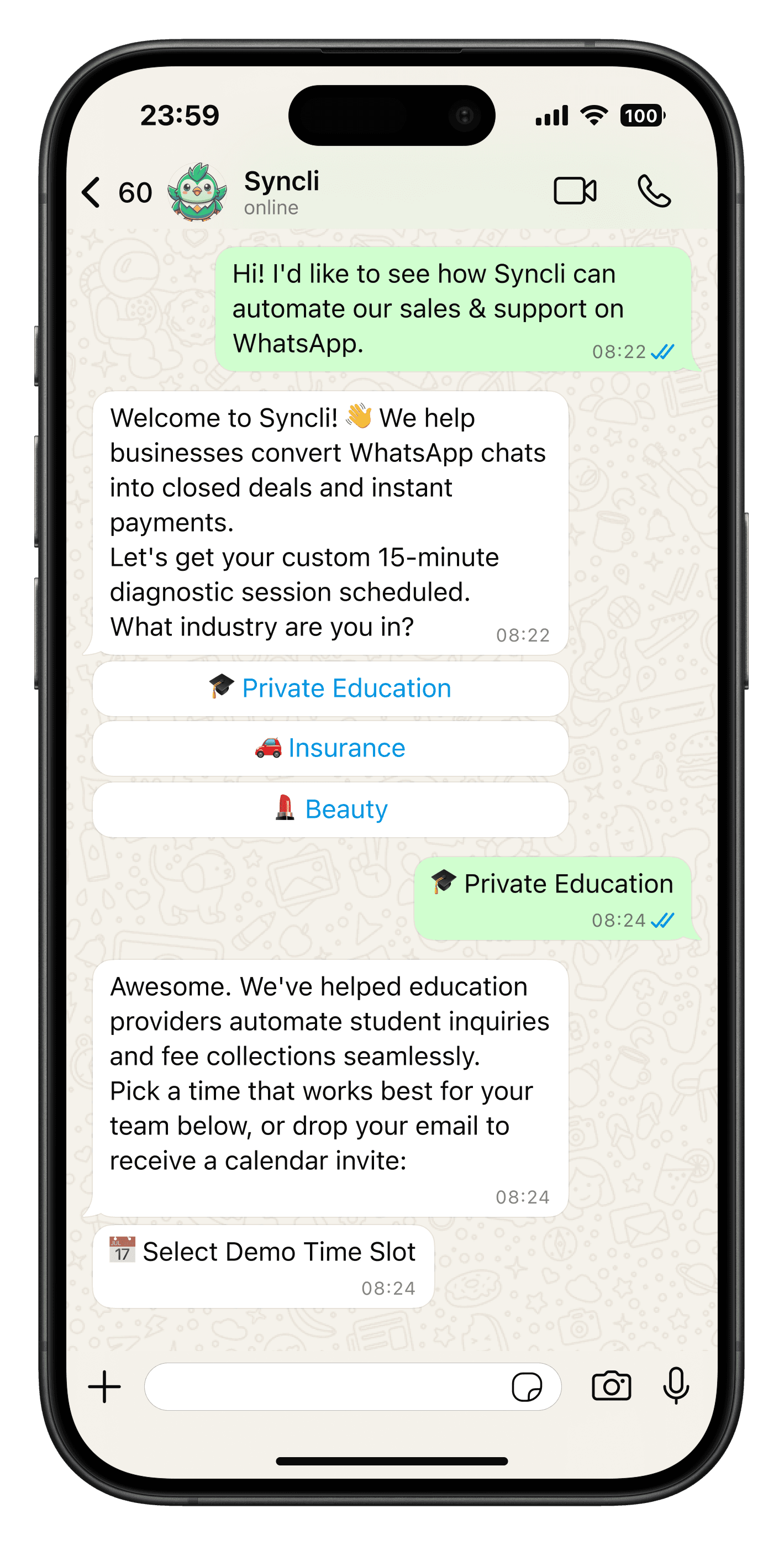
Syncli puts WhatsApp in one AI inbox with Instagram, Messenger, email and website live chat, so a lead from an ad, the sale and the follow-up a month later sit in one customer history. You can see how Syncli answers these questions against other platforms on our comparison page, and what's included on the WhatsApp Business API page. Once you're live, the next jobs are getting your message templates approved and, if you advertise, setting up Click-to-WhatsApp ads.
A sensible next step
If you'd like someone to look at your number, your portfolio and your business details before you start, book a private strategy review. We'll tell you which route fits, what's likely to hold you up, and what a month will cost. No commitment.
Frequently asked questions
The Embedded Signup flow itself is short: log in, choose your portfolio, verify the number and enter a display name. What takes longer is business verification and display name approval, which depend on Meta's review and on your business details matching your registration documents.