



Published in Guides
WhatsApp buttons and interactive messages: every type explained

By Lyle Timotheus · 10 min read
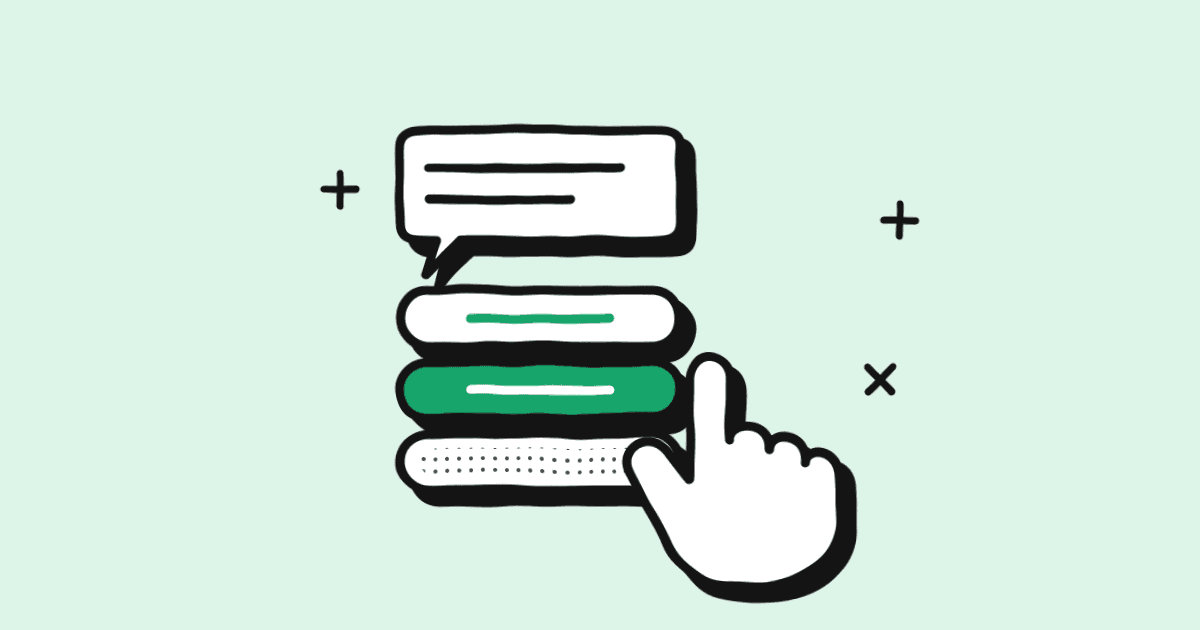
WhatsApp buttons and interactive messages let a customer answer you with a tap instead of typing: picking an option, opening a link, choosing a product or filling in a short form inside the chat. They're part of the WhatsApp Business API, and each type has its own limits on how many options you get and how long the labels can be.
I build these every week for businesses with busy WhatsApp numbers: retail chains, clinic groups, dealerships and insurers with teams of agents and several branches. At that volume, buttons do two jobs. They make it easy for the customer to answer, and they tell your system where to send the chat. Below is each type in plain words, when to use it, the limits from Meta's own documentation, and a table that puts them side by side.
First, the 24-hour rule decides which buttons you can use
When a customer messages you, a 24-hour customer service window opens, and it resets each time they message again. While it's open, you can send interactive messages freely: reply buttons, lists, link buttons, location requests and Flows. When it closes, you can only send Meta-approved templates.
Templates can carry buttons too, but a different set: quick replies, website links, a phone number, a copy-code button and a Flow button. So buttons live in two places:
| Interactive messages | Template buttons | |
|---|---|---|
| When you can send | Inside the 24-hour window, usually in reply to the customer | Any time, including to start a conversation |
| Needs Meta approval first | No | Yes, the whole template is reviewed |
| Button label length | 20 characters for reply and link buttons | 25 characters |
| Typical use | Chatbots, menus, live support | Reminders, updates, campaigns |
If you're new to templates, our guide to WhatsApp message templates explains categories, approval and rejections, with 18 examples.
Reply buttons
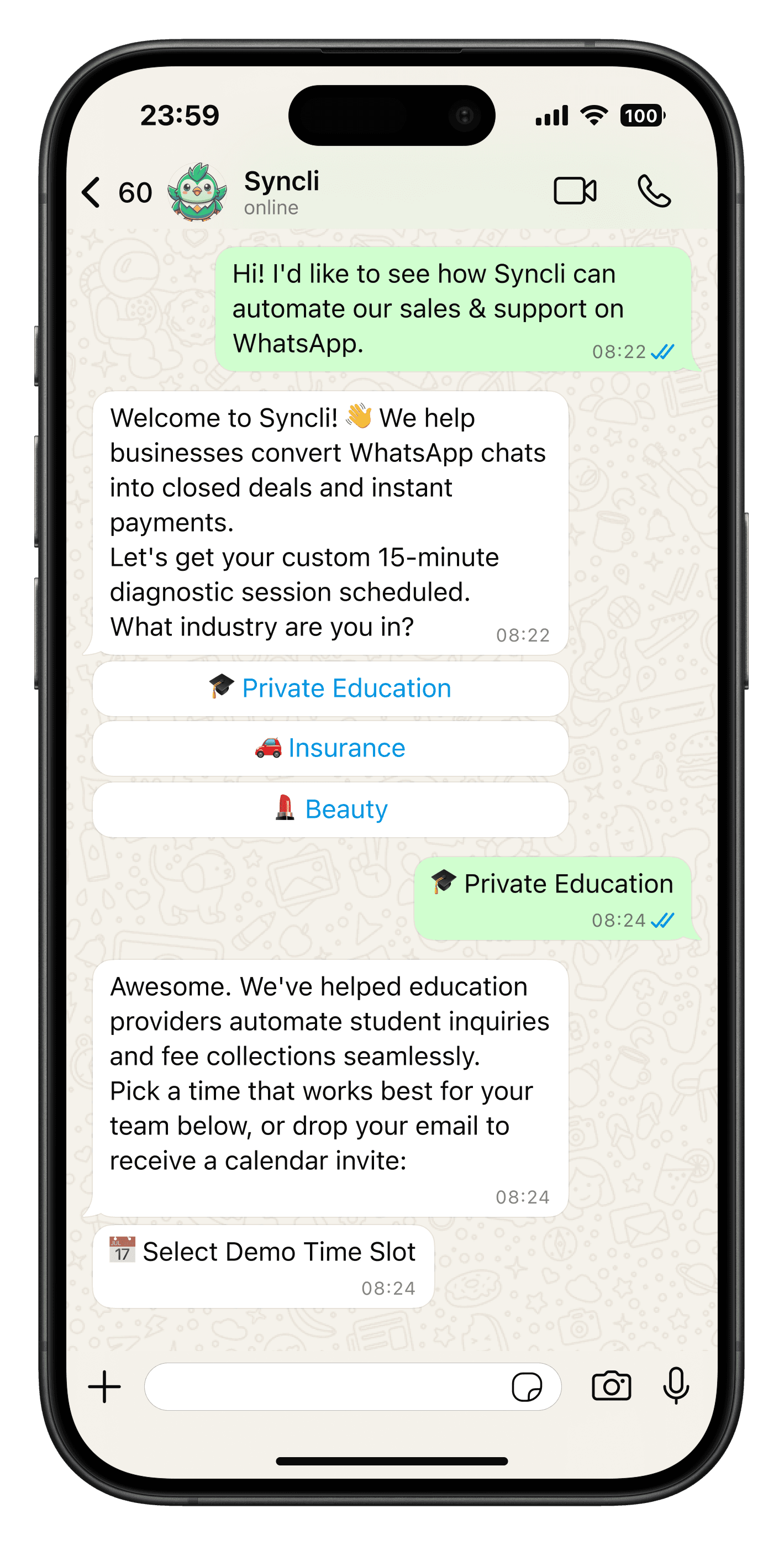
Reply buttons are up to three tappable options under a message. The customer taps one and it comes back to you as their answer, with an ID your system can act on.
- Buttons: up to 3, each label up to 20 characters, and labels must be different from each other.
- Message text: up to 1,024 characters.
- Header: optional text, image, video or document. Footer: optional, up to 60 characters.
Use them for quick yes-or-no decisions and short choices: "Track my order / Make a booking / Something else", or "Confirm / Reschedule". They're the backbone of most chatbots because three options fit on any phone screen without scrolling. Limits are from Meta's reply buttons reference.
List messages
A list message shows one button, such as "See options". Tapping it opens a menu of up to 10 choices, which can be split into sections with headings. The customer picks one and it comes back as their reply.
- Rows: up to 10 in total across all sections. Each row has a title up to 24 characters and an optional description up to 72.
- Sections: up to 10, each with a title up to 24 characters.
- Menu button label: up to 20 characters.
- Message text: up to 4,096 characters. Header: text only, up to 60 characters. Footer: up to 60.
Use a list when you have four to ten options: branches, services, departments, time slots for one day. For a business with several regions, a "Choose your branch" list at the start of a chat is often the simplest way to get each conversation to the right team. The description line is useful for detail that doesn't fit in the title, like "Menlyn, open until 6pm". If you have more than ten options, split the decision into two steps, or use a Flow. The figures come from Meta's list messages reference.
Call-to-action buttons: links and phone numbers
Link buttons inside a chat
A call-to-action URL message puts a link behind a clean button instead of pasting a long URL into the text. The label can be up to 20 characters and the message text up to 1,024. Use it for one clear destination: a payment page, a tracking page, a document to sign.
Link and phone buttons on templates
Templates can carry up to two website buttons and one phone number button. A template link can be up to 2,000 characters and can end in one variable, so each customer gets their own page, for example a payment link with their invoice number at the end. The phone number can be up to 20 characters, and tapping it opens the customer's dialler.
A phone button is the simplest way to give a customer a person to talk to. If they'd rather chat, a quick reply such as "Talk to someone" does the same job inside WhatsApp. Meta also has a separate call button for businesses using WhatsApp's own voice calling, which is a different set-up.
Quick reply buttons on templates
Quick replies on a template work like reply buttons, but you can send them any time because the template is pre-approved. Meta's template components reference sets the limits:
- Up to 10 quick replies, each label up to 25 characters.
- Up to 10 buttons in total across all types on one template.
- When you mix quick replies with link or phone buttons, the quick replies have to sit together as one group.
- With more than three buttons, WhatsApp shows two and puts the rest behind "See all options".
- Templates with four or more buttons, or with quick replies mixed with other types, can't be viewed on WhatsApp desktop.
Use them on reminders ("Confirm / Reschedule"), feedback requests ("Great / Okay / Not good") and campaigns, where a "Stop promotions" button gives people an easy way out. When the customer taps one, they've messaged you, so the 24-hour window opens and you can carry on with free-form replies and interactive messages.
Despite the shared name, these are different from the quick replies in the free WhatsApp Business app, which are saved text shortcuts for your own typing.
Copy-code buttons
A copy-code button puts a code on the customer's clipboard with one tap, so they don't have to retype it. There are two kinds:
- Coupon codes on marketing templates. One copy-code button per template, with a code of up to 20 characters. Good for loyalty discounts and promo codes the customer uses at an online checkout.
- One-time passcodes on authentication templates. The button copies a login or verification code of up to 15 characters. On Android you can use one-tap autofill instead, which sends the code straight into your app.
Authentication templates use Meta's fixed wording and can't contain links, media or emojis.
Catalogue and product messages
If your products are in a Meta catalogue connected to your WhatsApp account, you can share them as messages:
- Catalogue message: a product thumbnail, your text and a View catalogue button that opens the whole range.
- Single-product message: one product with its image, title and price, and a View button.
- Multi-product message: up to 30 products, grouped into sections you name.
- Product carousel: up to 10 product cards the customer swipes through sideways.
Each of these also has a template version, so you can send them outside the 24-hour window once approved. Use a single product when a customer asks about one item, and a multi-product message for "show me your sofas under R10,000".
Syncli's WhatsApp catalogue works as a storefront customers open from the chat, connected to your stock, with a payment link for the order total sent automatically.
Location requests
A location request is a message with a Send location button. Tapping it opens WhatsApp's location screen, and the customer's pin comes back to you. The message text can be up to 1,024 characters.
Use it when the address matters and typing it is error-prone: deliveries, roadside assistance, finding the nearest branch, sending a technician. It saves a lot of back-and-forth about tricky street names and which gate to use.
WhatsApp Flows: forms inside the chat
WhatsApp Flows are forms that open inside WhatsApp, with screens, text fields, dropdowns, date pickers and checkboxes. The customer fills them in without leaving the chat, and the answers come back to you as structured data instead of a string of messages.
Meta's own examples are loan applications, insurance quotes and collecting purchase details. In practice, I most often use them for bookings (branch, service, staff member, date and time), lead forms that qualify a buyer before a salesperson calls, and feedback surveys.
There are two ways to send a Flow:
- Inside the 24-hour window as an interactive message with a button. Meta advises keeping that button text to 30 characters or less, without emojis.
- Any time as a template with a Flow button, which can be up to 25 characters.
Flows work in the WhatsApp mobile app on Android and iOS. Syncli uses them for WhatsApp bookings, where clients pick a slot from your live calendars, and for lead capture in WhatsApp automation.
Every type side by side
| Type | Where it's used | Key limits | Best for |
|---|---|---|---|
| Reply buttons | Inside 24-hour window | 3 buttons, 20 characters each | Quick choices, chatbot menus |
| List message | Inside 24-hour window | 10 rows, 24-character titles, 72-character descriptions | 4 to 10 options: branches, services, slots |
| Link button (CTA URL) | Inside 24-hour window | 20-character label | One destination: pay, track, sign |
| Quick reply buttons | Templates | Up to 10, 25 characters each | Confirmations, feedback, opt-outs |
| Website buttons | Templates | Up to 2, URL up to 2,000 characters with one variable at the end | Personal payment or tracking links |
| Phone button | Templates | 1, number up to 20 characters | Reaching a person |
| Copy-code button | Marketing and authentication templates | 1 per template; coupon up to 20 characters, passcode up to 15 | Coupons and login codes |
| Product messages | Both (template versions exist) | Multi-product up to 30 items; carousel up to 10 cards | Showing products in the chat |
| Location request | Inside 24-hour window | 1,024-character message text | Deliveries, call-outs, nearest branch |
| WhatsApp Flows | Both (Flow button on templates) | Template button up to 25 characters | Bookings, lead forms, surveys |
Design tips that get people tapping
- Keep labels short. Twenty characters is the ceiling, not the target. "Book", "Track order" and "Talk to us" read faster than "Click here to make a booking".
- One decision per message. Ask for the branch, then the service, then the time. Three easy taps beat one crowded menu.
- Always give a way to reach a human. Put "Talk to someone" in every menu, and make sure it hands the chat to an agent with the conversation so far. A customer stuck in a loop blocks your number, and blocks hurt your quality rating. Our guide on how to avoid a WhatsApp ban explains why.
- Say what happens next. "Pay R450" is clearer than "Continue". The customer should know before tapping.
- Use buttons, not "reply YES". A tap is less effort than typing, and your system gets a clean answer instead of "ya sure".
- Test on a small phone. Long descriptions in lists get cut off, and what looks fine on your desktop preview may wrap badly on an older Android.
- Use the button IDs for routing. Every tap comes back with the ID you set, so "Sales", "Support" and "Accounts" can each go to a different team or branch queue without an agent reading the chat first.
- Handle free text anyway. Some people will type instead of tapping. An AI agent or a fallback reply should catch it.
Do you need the API?
Yes. Reply buttons, list messages, link buttons, location requests, Flows and template buttons are sent through the WhatsApp Business API. The free WhatsApp Business app can share catalogue items and save text shortcuts, but it can't send these interactive types. If you're still on the app, our guide to getting the WhatsApp Business API in South Africa explains the switch.
Interactive messages you send inside the 24-hour window are service replies, and each number gets a free monthly allowance. Templates with buttons are charged per delivered message by category, the same as any template. The rates are in our WhatsApp API pricing guide.
In Syncli, chat flows with buttons and forms are built without code, templates carry quick-reply, link and opt-out buttons, and payment links go out automatically when an order or booking is confirmed. For campaigns that use buttons, see WhatsApp bulk messaging.
Not sure which type fits your flow?
If you're planning a chatbot, a booking flow or a campaign and want to know which buttons to use where, book a private strategy review. Tell us what your customers ask most and how your teams are split, and we'll sketch the flow with you. No commitment.
Frequently asked questions
It depends on the type. Reply buttons allow up to 3 in a live chat. A list message holds up to 10 options behind one button. Templates can have up to 10 buttons in total, including up to 10 quick replies, 2 website links, 1 phone number and 1 copy-code button.