






Published in Guides
Can you schedule messages on WhatsApp Business? The app vs the API

By Lyle Timotheus · 8 min read
Partly. The WhatsApp Business app can schedule business broadcasts (a paid feature that's only in some countries so far) and away messages, but it has no option to write a message to one customer and set it to send later. Scheduled campaigns and reminders triggered by bookings, orders or due dates run on the WhatsApp Business API, through a platform that does the scheduling for you.
This guide is for teams that send at volume: CX, operations, collections and marketing leads who need messages to go out on time across segments, branches and time zones. It covers what the app can do, the workarounds I'd steer you away from, and how scheduling works properly on the API, with practical notes on timing.
What the WhatsApp Business app can schedule
| Feature | Can you schedule it? | Worth knowing |
|---|---|---|
| Business broadcasts | Yes: send now or schedule for later | Paid beyond a free allowance, reviewed by Meta, and only available in some countries |
| Away messages | Yes: always, on a custom schedule, or outside business hours | The phone needs an internet connection for them to send |
| Broadcast lists | No, send now only | Only reach people who saved your number |
| A message to one customer | No | There's no send-later option in a chat |
Business broadcasts are the newest piece. In the app you go to Tools, then Business broadcasts, pick an audience, add media and an optional button, then send or schedule. WhatsApp's help centre says broadcasts are reviewed by Meta, that processing a scheduled send can take up to 3 hours, and that the feature is available in limited countries. On pricing, you pay per message delivered within five days, priced by the recipient's country code. If you don't see it under Tools, it hasn't reached your account yet.
Away messages can be set to always send, follow a custom schedule, or go out outside your business hours, according to WhatsApp's away message guide. They're replies to people who message you, so they don't help with reminders or campaigns.
For a team, the bigger limit is that the app is built around one phone. There's no scheduling tied to your booking system or billing, no segments built from order data, and no way to send a reminder relative to each customer's own appointment time. Our comparison of the WhatsApp Business app and API goes into the rest.
Workarounds people use, and what they risk
When the app can't do it, people look for something that can. These are the common ones:
- Auto-sender apps on Android. They use accessibility permissions to open WhatsApp and press send at a set time. They break whenever WhatsApp updates, and they're automated sending on a personal or Business app account.
- Modified WhatsApp apps. Versions like GB WhatsApp advertise scheduling. WhatsApp's help centre lists them as unofficial apps and says using one can get you temporarily banned, and then permanently if you don't switch back.
- Browser extensions and bots on WhatsApp Web. They click through WhatsApp Web to send messages in bulk or on a timer. WhatsApp's Terms of Service prohibit bulk messaging and auto-messaging, and accessing the service through automated means.
- A calendar reminder to send it yourself. Safe, and fine for a few messages a week. It doesn't scale past one person's memory.
The first three all put the number at risk, and for a business that number is on every invoice, Google listing and ad. I've seen teams lose a number this way and spend weeks rebuilding. Our guide on how to avoid a WhatsApp ban covers what happens and how to appeal.
How scheduling works on the WhatsApp Business API
The API itself has no send-later setting. It sends a message when your system calls it. Scheduling lives in the platform you use, which decides when to make that call. In practice there are two kinds of scheduled message:
- Scheduled campaigns. One template to a segment at a set time: a month-end statement run, a school term notice, a promotion to customers who bought in the last 90 days.
- Triggered journeys. Messages timed relative to an event for each customer: 24 hours before their appointment, three days before their invoice is due, two hours after a cart was abandoned, the day a policy renews.
Both rely on templates. Once a customer has been quiet for 24 hours, a business can only start a conversation with a template Meta has approved. Reminders and account notices go out as utility templates, about R0.17 each to South African numbers; promotions are marketing templates, about R0.68 each. Get the category right: Meta reclassifies templates that mix a promotion into an update. The pricing guide has the full rate card.
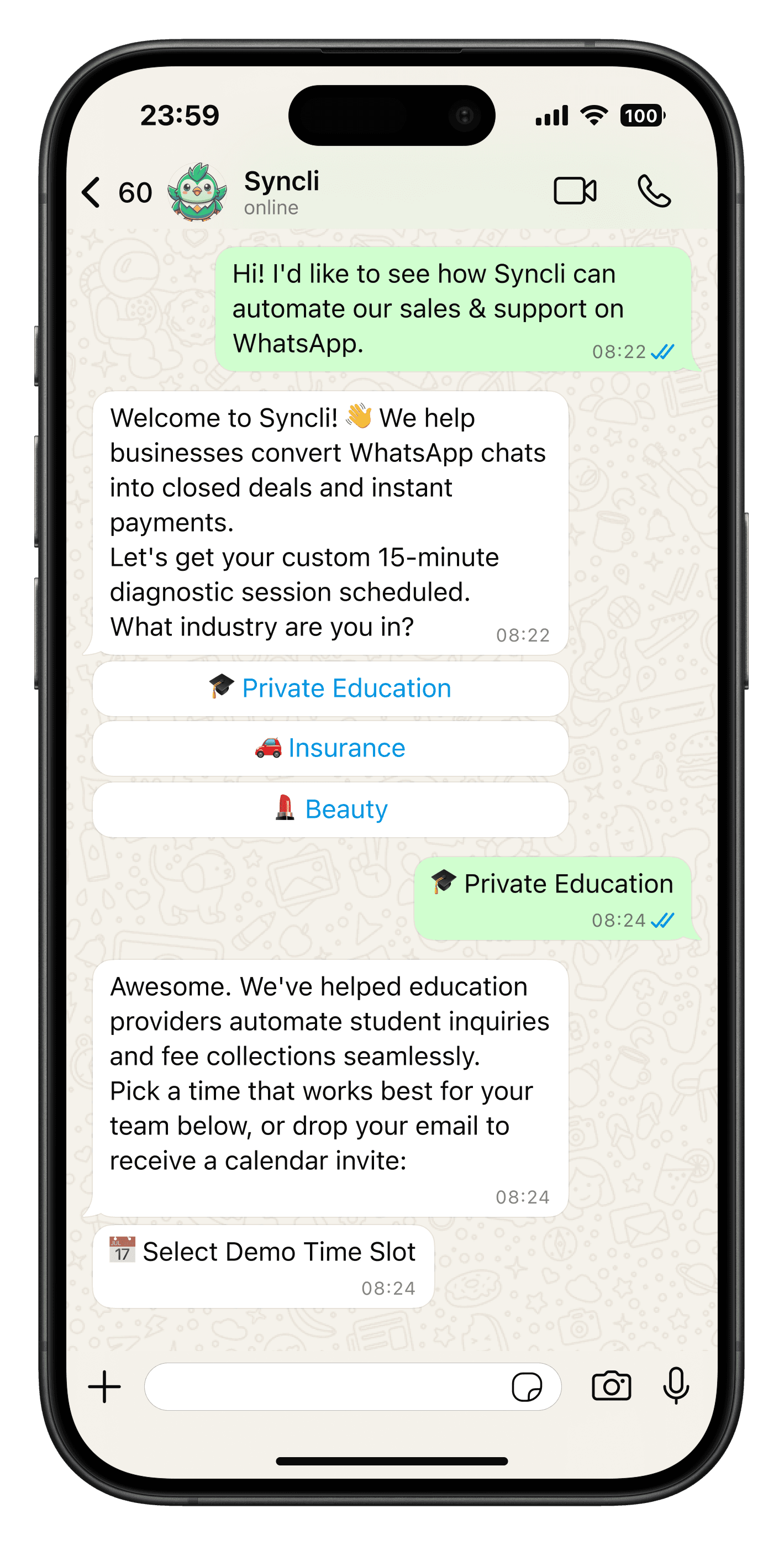
Triggered journeys are where most of the value is for high-volume teams, because each message is relevant to that customer on that day. With Syncli, booking reminders go out at the times you choose before each appointment, payment links get automatic follow-ups when they're unpaid, and order updates go out as the order moves. Campaigns are scheduled from the bulk messaging builder, with your quality rating and messaging limit in view.
Time zones, quiet hours and stale messages
The details that go wrong at scale are nearly always about time.
- Store the customer's or branch's time zone. South Africa is on SAST (UTC+2) all year, but servers usually run on UTC, and if you have branches or customers in other countries, "9am" means something different for each. Schedule in the recipient's local time.
- Respect legal contact times for marketing. In South Africa, the CPA regulations bar direct marketing to consumers at home on Sundays and public holidays, on Saturdays before 09h00 and after 13h00, and on other days between 20h00 and 08h00. They also say marketing may not be timed to be delivered in those hours unless the consumer agreed in writing.
- Set quiet hours for everything else too. A payment reminder isn't direct marketing, but nobody wants it at 22h00. I use the same window for utility messages unless the message is time-critical, like an OTP or a same-day delivery update.
- Give reminders a time-to-live. Meta lets you set how long it tries to deliver a utility template, from 30 seconds to 12 hours (Meta's TTL docs). A reminder for a 09h00 appointment that arrives at 14h00 is worse than none, so let it expire.
- Spread large sends. Meta caps how many people you can start conversations with in 24 hours, and how many marketing messages each person gets from businesses overall. If a message hits the per-person cap (error 131049), don't retry for at least 24 hours.
- Cancel what's no longer true. When a booking is moved or an invoice is paid, the scheduled reminder has to be cancelled or rescheduled automatically. This is the most common complaint I see when teams build scheduling themselves.
When to send: practical timing for South African customers
I won't give you a magic best time, because it depends on your customers and you should test it. These are the rules of thumb I start teams with:
- Time triggered messages to the event, not the clock. 24 hours and 2 hours before an appointment works for most clinics, salons and gyms. Three days before a due date gives people time to pay.
- Send account and payment messages around payday. If you know when most of your customers are paid, or when their debit orders run, time reminders to land just after. Asking someone to pay the week before payday mostly produces replies asking for more time.
- Avoid the first and last hour of the working day for anything that may need an agent's reply. If a campaign drives replies, schedule it when your team is staffed to answer.
- Stagger by branch or region so replies don't all land on one team at once.
- Check the public holiday calendar before scheduling marketing, and remember the Sunday rule.
- Test on matched segments. Send the same template at two times to two similar groups and compare read and reply rates. At volume, a week of testing pays for itself.
Getting scheduling right across a team
For a business with several branches, agents and message types, I'd set it up in this order:
- List the messages you send today by hand, and mark each as a campaign or a triggered journey.
- Write and submit the templates, in the right category, with the variables you'll need.
- Connect the systems that hold the triggers: bookings, billing, orders or your CRM.
- Set time zones per branch, quiet hours and a TTL for each reminder.
- Decide who handles replies, by team or branch, so a reminder that gets a question reaches a person.
- Review delivery, read and reply rates monthly, and retire messages nobody reads.
Syncli handles scheduled broadcasts and triggered reminders on the official API, with replies going to a shared inbox where AI agents answer routine questions and hand the rest to your team. Plans start at R1,800 a month plus Meta's fees at cost. See WhatsApp automation for what can be automated, or read about payment reminders and booking reminders and deposits for two journeys in detail.
If you'd like a second opinion on your schedule and templates, book a private strategy review and we'll go through it with you.
Frequently asked questions
Only business broadcasts and away messages. Business broadcasts can be sent now or scheduled, but they're a paid feature and only available in some countries. There's no option to schedule a message to a single customer in a chat. Scheduled reminders and campaigns at volume need the WhatsApp Business API.