















Published in Guides
How to connect one WhatsApp number to multiple branches

By Lyle Timotheus · 7 min read
To connect one WhatsApp number to multiple branches, move the number onto the WhatsApp Business API, connect it to a shared team inbox, create a team for each branch, and route each chat to the right branch, usually by asking the customer to pick their branch in the first message. Every branch then answers its own customers from the same number, and head office sees all of it.
You can't do this properly on the WhatsApp Business app, because it's built for one phone. This guide compares one number with a number per branch, then walks through the setup and the mistakes I see when groups make the switch.
Why the WhatsApp Business app doesn't work for branches
The app runs on one phone. WhatsApp's own multi-device announcement lets you link up to four additional devices, but they're all the same account: no assignment, no queues per branch, no way to see who answered what, and no record when a staff member leaves.
So most groups end up with one of two bad set-ups: one phone at head office that forwards messages to branches by hand, or a separate phone in every store that head office can't see. Both are slow, and both lose leads. We wrote about the risk of staff running WhatsApp on their own phones separately.
The WhatsApp Business API has no screen of its own, so you use it through a platform with a shared inbox. That's where branch routing lives. Our app vs API guide covers the wider differences.
One number for all branches, or one per branch?
Both work on the API. The right choice depends on how your customers already contact you.
| One number, routed by branch | A number per branch | |
|---|---|---|
| What customers save | One number for the whole brand | Their local store's number |
| Advertising | One number on every ad, site and receipt | A different number per store |
| Getting to the right branch | Customer picks a branch, or staff assign | Automatic, by which number they message |
| Customer moves cities | Same chat, new branch | New number, history split |
| Green tick and display name | One to manage | One per number |
| Templates | One set | Shared within the same WhatsApp Business account |
| Messaging limit | Shared across your business portfolio | Also shared across the portfolio |
| Best for | Retail chains, franchises, practice groups with one brand | Dealer groups and branches with well-known local numbers |
One detail surprises people: adding numbers doesn't add messaging capacity. Meta's messaging limits are set at the business portfolio level and shared by all the numbers in it, so ten branch numbers share one limit for the conversations you start.
My default for most groups is one main number. Customers only ever save one, your marketing is simpler, and a customer who moves from the Pretoria store to the Cape Town store keeps one history. Keep a number per branch when those numbers are already printed on years of signage and customers know them.
How routing to branches works
With one number, the work is getting each chat to the right branch quickly. There are two dependable ways, and most groups use both.
The customer picks their branch
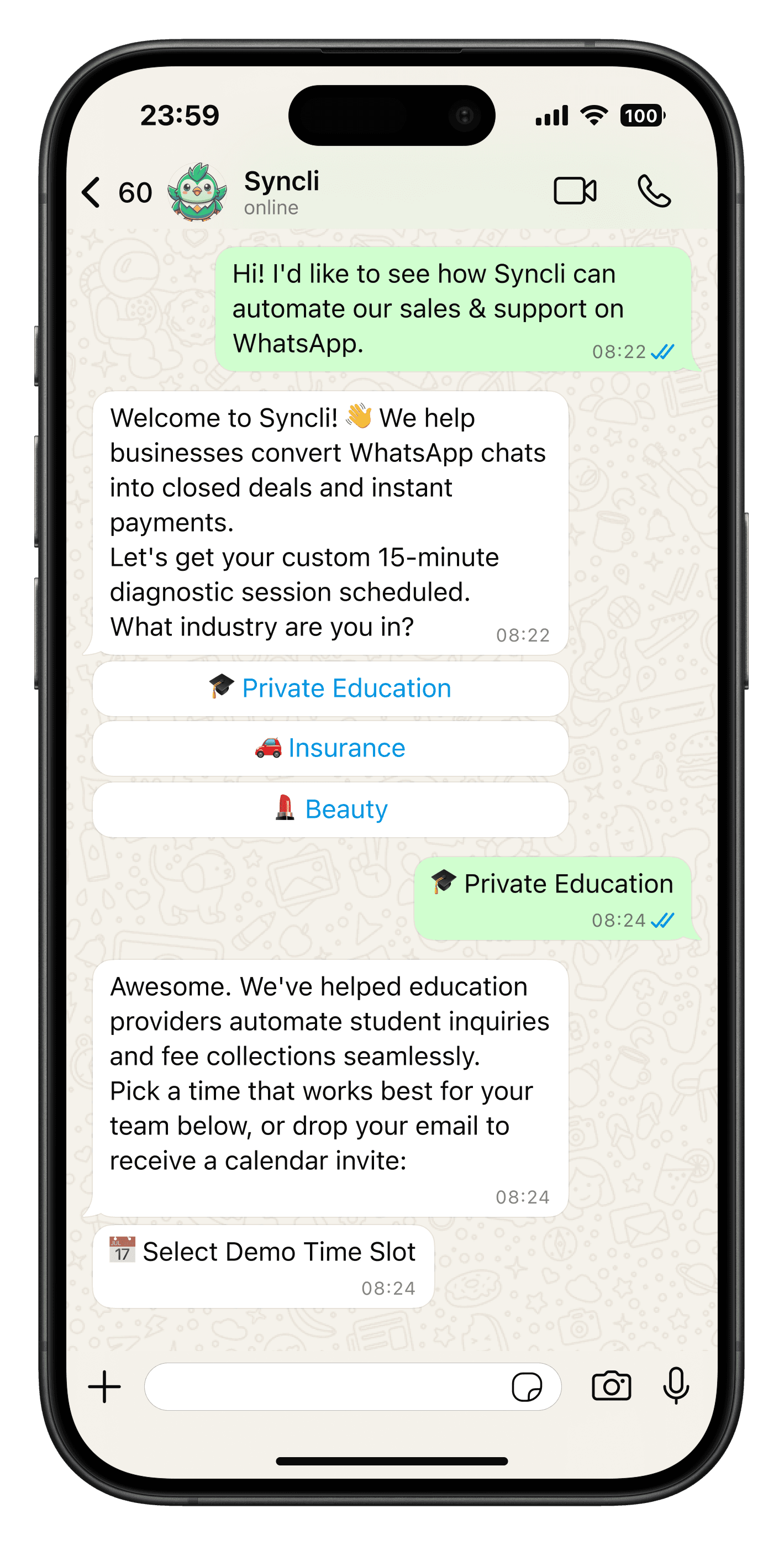
The first reply is a short welcome with a list of branches, or a region first and then a branch if you have many. The customer taps one, and an automation moves the chat to that branch's team. It adds one tap for the customer and saves a transfer later.
If you also want to know what they need, add one more question: sales, service, or an existing order. Sales enquiries for the Menlyn store then go to Menlyn's sales team, and order queries go to the central support team.
Staff assign it
Some chats won't fit the flow: the customer types instead of tapping, or the question is for head office. A team lead or central agent assigns those by hand, and any agent can move a chat to another team if it landed in the wrong place.
Make the source do some of the work
WhatsApp's click-to-chat links can carry a pre-filled message. Give each store its own link or QR code, with text like "Hi, I'm contacting the Ballito store", so the branch is in the first message and your team can see where the customer is before asking.
In Syncli, the automation handles the first two: chat flows with buttons capture what the customer needs and route them to the right team or branch, and the team inbox gives every chat an owner, with routing by team and visibility kept between teams. The multi-branch page shows how the queues look.
Setup steps
- Choose the number. Usually your main published number. If it's on the WhatsApp Business app today, coexistence lets you keep using the app on that number while the team moves to the API. See WhatsApp coexistence.
- Connect it to the API through a Meta Tech Provider. With Syncli, that's done with Meta's Login with Facebook flow during onboarding.
- Create a team per branch, plus central teams such as online orders or head office support.
- Add staff to their branch team. Syncli has unlimited seats on every plan, so every store's staff can have their own login.
- Build the welcome flow with the branch list, and test it on your own phone.
- Decide who catches the rest: the central person or team who assigns chats that don't come through the flow.
- Set reply targets by branch, such as a first reply within 10 minutes during trading hours.
- Tell customers. Put the one number on your website, ads, receipts and store signage, with store-specific QR codes.
Worked example: a 14-store optometry group
An example to show the decisions, not a client result.
The group has 14 practices, each with its own landline and an old WhatsApp phone at reception. It moves to one main WhatsApp number. The welcome flow asks for the region (Gauteng, KwaZulu-Natal, Western Cape), then the practice, then the reason: book an eye test, collect glasses, or a question.
Eye test bookings go into each practice's calendar through WhatsApp bookings, where the patient picks the practice, optometrist and slot. Collection queries go to the practice's reception team. Billing questions go to a central team at head office. The 14 reception phones are retired, and head office can see first reply times for every practice for the first time.
Mistakes to avoid
- A branch list nobody can scan. With more than 10 branches, ask for the region or city first.
- No fallback. If nobody owns unrouted chats, they sit unanswered.
- Branches that can't see stock or bookings. Routing to the right store only helps if that store can answer.
- Leaving the old branch phones running. Customers keep using them and the history splits again. Set an end date and an auto-reply pointing to the main number.
- Assuming more numbers means more capacity. The messaging limit is shared across your portfolio.
- No reply targets per branch. A group average hides the store that takes four hours on a Saturday.
Set up your branches on Syncli
If you're running several stores, practices or dealerships on separate phones, book a private strategy review. We'll map how chats should route across your branches and teams, whether one number or several suits you, and what head office should see.
Frequently asked questions
Yes, on the WhatsApp Business API with a shared team inbox. Each branch gets its own team, chats are routed to the right one, and staff at every branch answer from the same number with their own login.